


Answer questions.
Fill one answer or the whole page, including readable images and equations.
Explore questions


Choose the work. Classglide fills it in on the page.

Fill one answer or the whole page, including readable images and equations.
Explore questionsUse the instructions, rubric, and assigned readings to write directly in the editor.
Explore essays
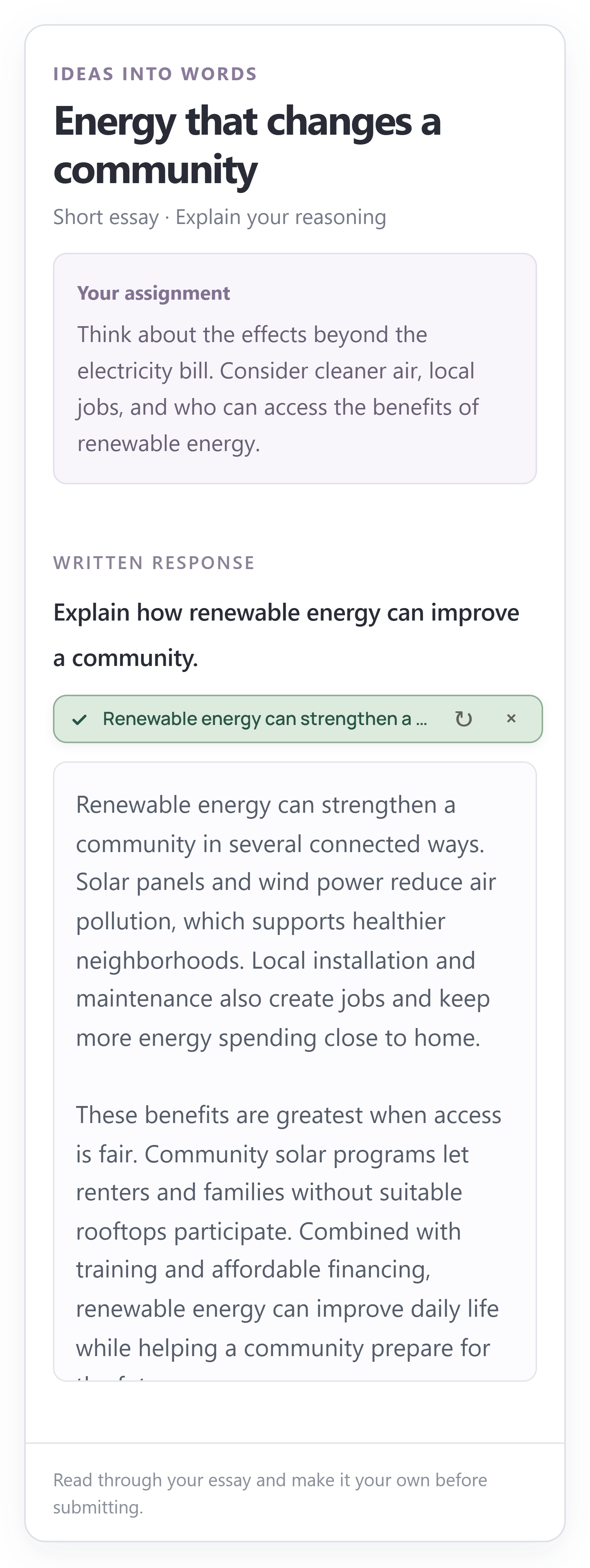

Write a main post or a reply to the classmate’s visible post.
Explore discussions


Linked readings and accessible documents give Classglide the material it needs before writing.
Explore sources


 Readings & filesAssigned PDFs, Word documents, text files and recordings are read before the writing starts, scanned pages included.
 Images & equationsWhen a question comes with a picture, chart or equation, the visible image goes with the question and the answer accounts for it.
 References & citationsIEEE, APA, MLA, Chicago or Harvard, as the requirements say, with a reference list whose links can be clicked.
 Automatic answeringTurn it on and Classglide answers new questions as they appear. Moving to the next page or submitting is a separate switch, off until you choose it.
 Learned answersAfter a graded quiz, Classglide can keep the marked answers on your computer and use them again on a retake.